
Firmware updates
The firmware is the timer’s own software. ASB Nexus publishes new versions on rangecue.asbnexus.com. To see which version you have: Settings › About › Firmware, or the studio’s connection bar.
Normal update from the studio
- Charge the timer to at least 20 %, or keep it plugged in. The timer refuses an update below 20 % on battery.
- Connect the studio and pair it (chapter “RangeCue Studio”). Stop any program that is running.
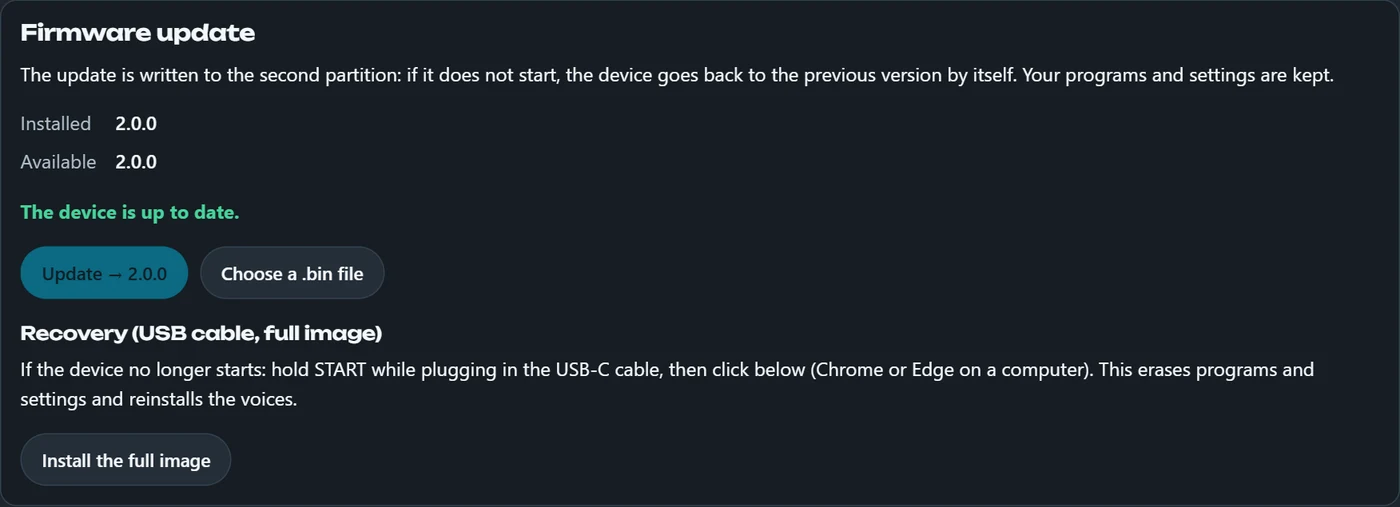
- Open the Firmware tab. It shows the Installed and Available versions.
- Click Update → version. To install a file you downloaded, use Choose a .bin file.
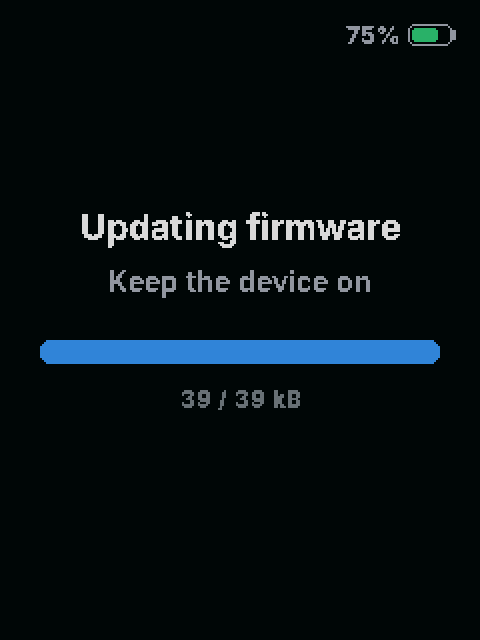
- The timer shows Updating firmware – Keep the device on with a progress bar. Do not switch it off or disconnect it.
- The timer restarts with the new version.
Expected time: about 20 s over the USB cable, about 40 s over the timer’s Wi-Fi and about 3 minutes over Bluetooth. Over Wi-Fi the full studio page must be installed on the timer.
Automatic rollback
The new version is written next to the current one. After the restart, the timer keeps it only once it has shown the program list for 10 seconds. If the new version does not start properly, the timer goes back to the previous version by itself. Your programs, settings and voices are kept in a normal update.
Recovery (if the timer no longer starts)
Use this only if the timer does not start at all, or shows Storage error. It reinstalls everything and erases your programs and settings.
- On a computer, open the studio in Chrome or Edge › Firmware › Recovery (USB cable, full image).
- Hold START while you plug in the USB-C cable (update mode).
- Click Install the full image and pick the timer in the browser’s list.
- When it is done, unplug the cable, switch the timer on and choose the language again.
The full image and the update file are also in the Downloads section of rangecue.asbnexus.com.