
Menus and settings
From the program list, press PAUSE (or tap Menu) to open the main menu. In every list, LOCK and SKIP move, START selects and PAUSE goes back.
Main menu
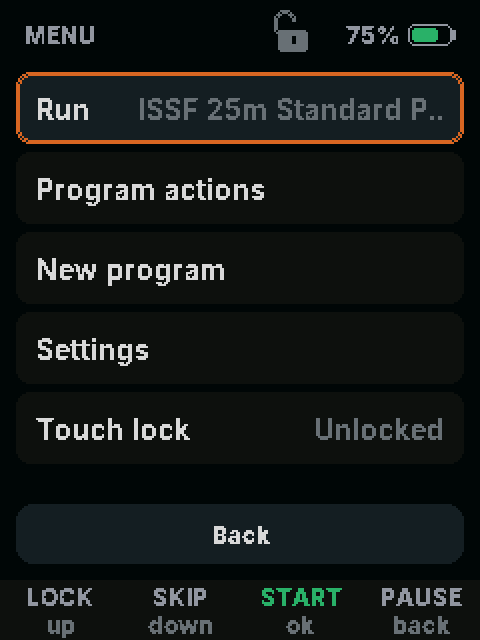
- Run
- Runs the program selected in the list (its name is shown on the right).
- Program actions
- The actions menu of the selected program (below).
- New program
- Creates “MY PROGRAM n” and opens it in the editor (chapter “Creating a program on the device”).
- Settings
- All the timer’s settings (below).
- Touch lock
- Locks or unlocks the touch screen (shows Locked / Unlocked).
Program actions
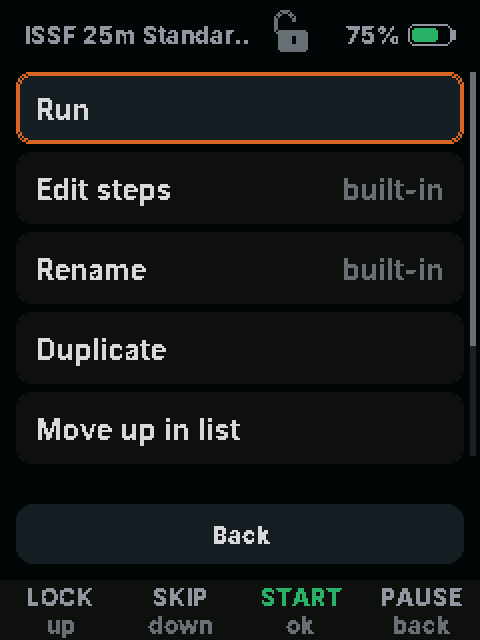
Hold START on a program (or long-press its card, or tap Edit) to open its actions:
- Run
- Starts the program.
- Edit steps
- Opens the program editor.
- Rename
- Changes the program name with the on-screen keyboard (up to 40 characters).
- Duplicate
- Makes a copy (“… copy”) at the end of the list.
- Move up in list / Move down in list
- Changes the order of the program list.
- Delete
- Deletes the program after a confirmation (No, go back / Yes, delete).
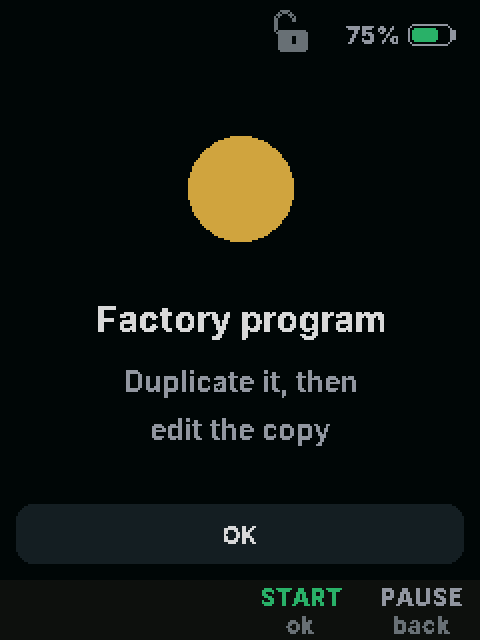
The factory program is marked built-in: it cannot be edited, renamed or deleted. Duplicate it and edit the copy. If its file is ever deleted, it comes back by itself.
Settings
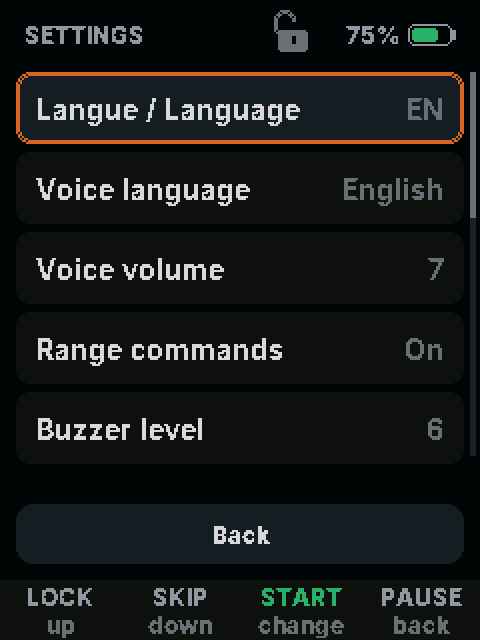
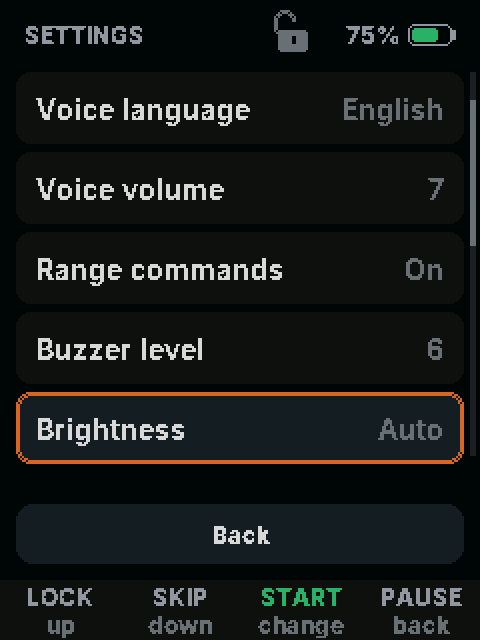
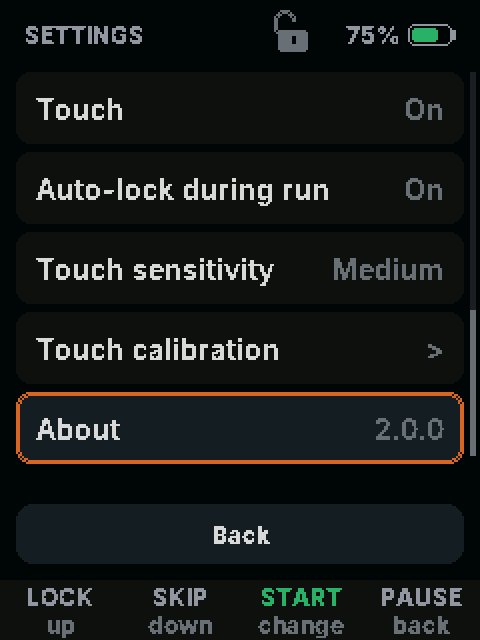
| Setting | Choices | What it does |
|---|---|---|
| Langue / Language | English, Français | Language of the screens. Program names are not translated. |
| Voice language | English, Français | Language of the spoken range commands, independent of the screen. Plays “Attention” when changed. |
| Voice volume | 0–10 (default 7) | 0 = no voice. Plays “Attention” at the new volume. |
| Range commands | On (spoken), Off (beeps only) | Turns all spoken range commands on or off. See “Voice and language”. |
| Buzzer level | 0–10 (default 6) | 0 = buzzer off. Beeps at the new level. |
| Brightness | Auto, Low, Medium, High, Max | Screen backlight. Auto uses the same level as High (the timer has no light sensor). |
| Studio link | sub-menu | How RangeCue Studio connects (below). |
| Buzzer tone | 1500–5000 Hz (default 3200) | Pitch of the buzzer. The buzzer is loudest near its rated 3200 Hz. |
| Touch | On, Off (keys only) | Turns the touch screen on or off. |
| Auto-lock during run | On (default), Off | Locks touch while a program runs. |
| Touch sensitivity | Low (firm), Medium, High (light) | How hard you must press. Default Medium. |
| Touch calibration | sub-menu | Calibrate, test or reset the touch screen (below). |
| About | information | Firmware version, model, device name, touch controller, screen, number of programs (of 20), storage used, maker, and the voice credits. |
Number pages
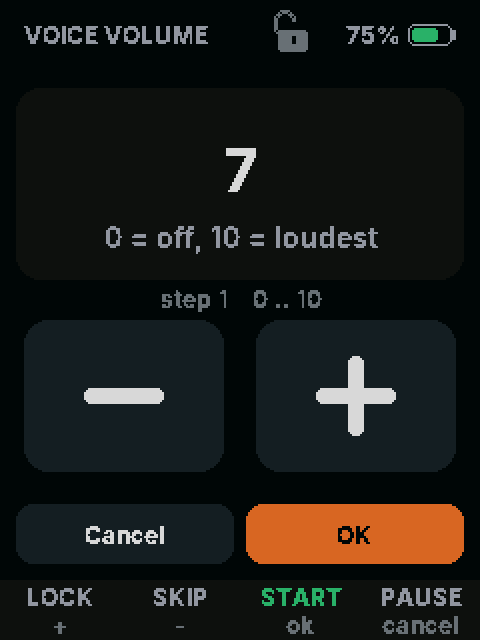
Volume, buzzer level, buzzer tone and durations open a number page: LOCK = +, SKIP = −, hold to go faster, START = OK, PAUSE = cancel. By touch, press and hold the − and + buttons, then tap OK. The page shows the current step and the allowed range.
Studio link
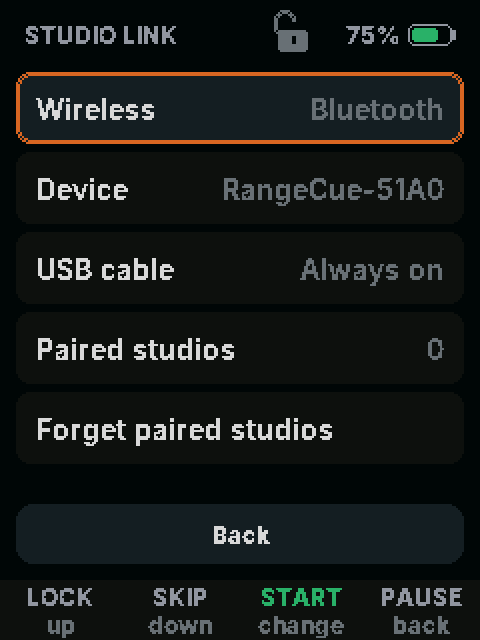
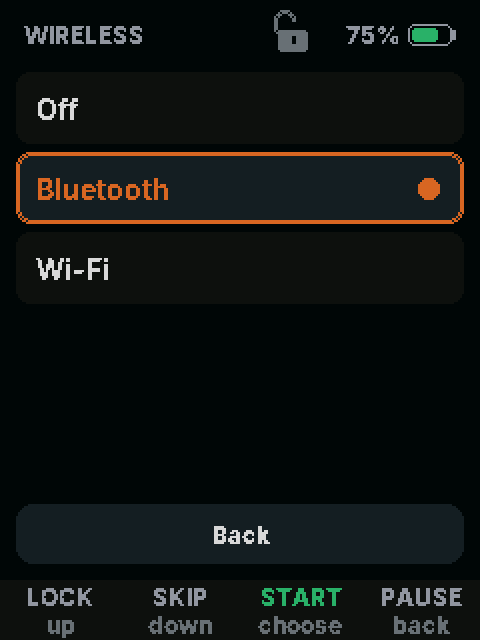
- Wireless
- Off, Bluetooth (default) or Wi-Fi. Wi-Fi turns the timer into its own access point
RangeCue-XXXX, for iPhone, iPad, Safari and Firefox. - Wi-Fi details + QR
- Shown only when Wireless is Wi-Fi: network name, password, the address to open and a QR code that a phone camera can scan to join.
- Device
- The timer’s name,
RangeCue-XXXX(the same name appears in Bluetooth and Wi-Fi lists). - USB cable
- Always on: the cable link needs no setting.
- Paired studios
- How many studios are allowed to make changes.
- Forget paired studios
- Removes every paired studio after a confirmation. Each studio must pair again.
Touch calibration
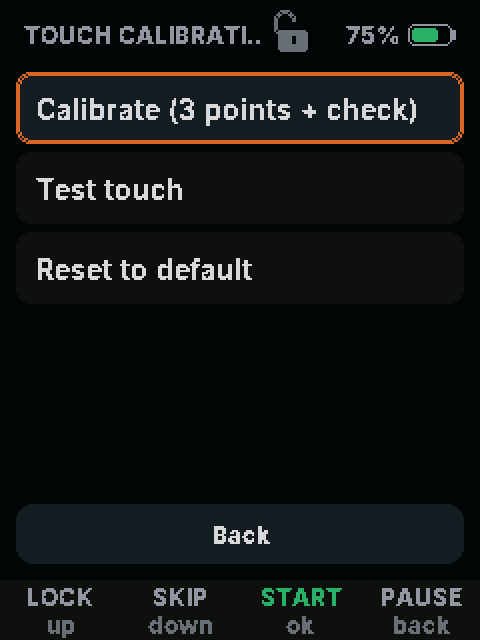
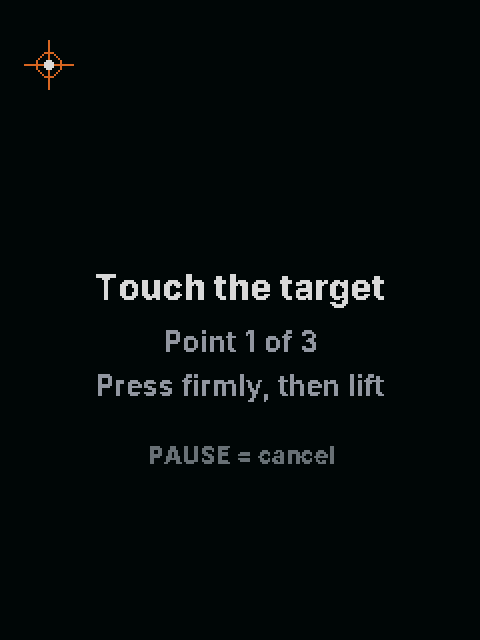
- Calibrate (3 points + check)
- Press firmly on each of the three targets, then lift; then press the check target. If the check lands within 15 pixels, the calibration is saved (“Calibration saved”); otherwise it starts again. PAUSE cancels at any time.
- Test touch
- Shows where the screen sees your finger, and how firm the press is. PAUSE goes back.
- Reset to default
- Goes back to the factory calibration after a confirmation.