RangeCue Studio
RangeCue Studio is a free web app at rangecue.asbnexus.com (Open the studio). Use it to build programs on a bigger screen, listen to them with the real buzzer patterns and voice, keep them in your browser, share them, change the timer’s settings and update its firmware. Once loaded, the studio also works offline, and you can install it like an app.
Three ways to connect
| Link | On the timer | In the studio |
|---|---|---|
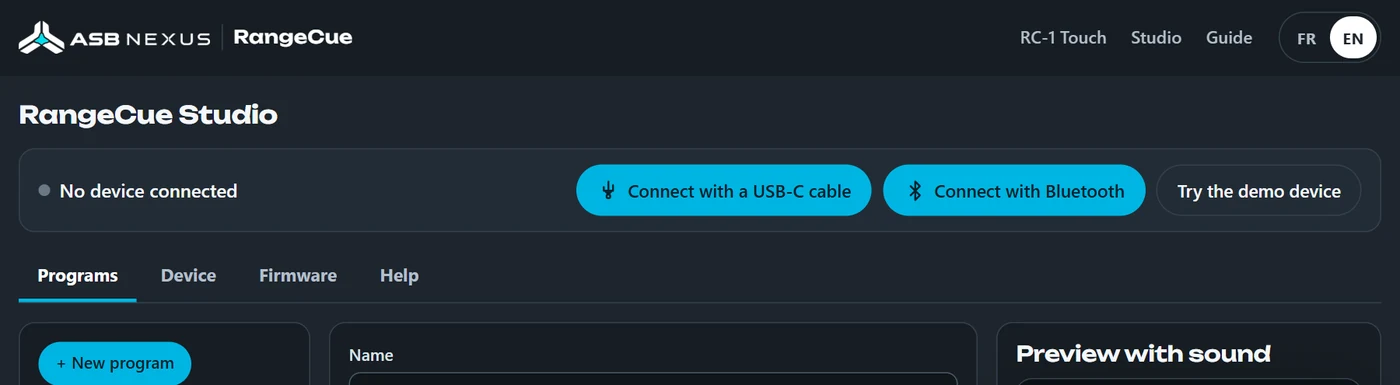
| USB-C cable | Nothing to set: always on. | Connect with a USB-C cable, then pick the timer in the browser’s list. |
| Bluetooth | Settings › Studio link › Wireless = Bluetooth (default). | Connect with Bluetooth, then pick RangeCue-XXXX. |
| The timer’s Wi-Fi | Wireless = Wi-Fi, then Wi-Fi details + QR. | Join RangeCue-XXXX; the studio page opens from the timer itself (below). |
Which browser?
| Browser | USB-C cable | Bluetooth | Timer’s Wi-Fi | Build, play, save, share |
|---|---|---|---|---|
| Chrome / Edge on Windows, macOS, Linux, ChromeOS | Yes | Yes¹ | Yes | Yes |
| Chrome on Android | Recent versions² | Yes | Yes | Yes |
| Safari on iPhone / iPad (and every iOS browser) | No | No | Yes: use this | Yes |
| Safari on macOS | No | No | Yes | Yes |
| Firefox (computer and Android) | No | No | Yes | Yes |
¹ On some Linux systems Bluetooth must first be enabled in Chrome’s experimental settings. ² USB from Chrome on Android needs a recent Chrome version and a USB-C to USB-C cable from the phone to the timer.
Why: cable and Bluetooth from a web page (Web Serial, Web Bluetooth) exist only in Chrome, Edge and other Chromium browsers. Apple allows no other browser engine on iPhone, so every iPhone browser takes the Wi-Fi path.
Pairing: nobody changes your timer without you
A studio can read the timer as soon as it connects, but it can make changes only after you pair it once:
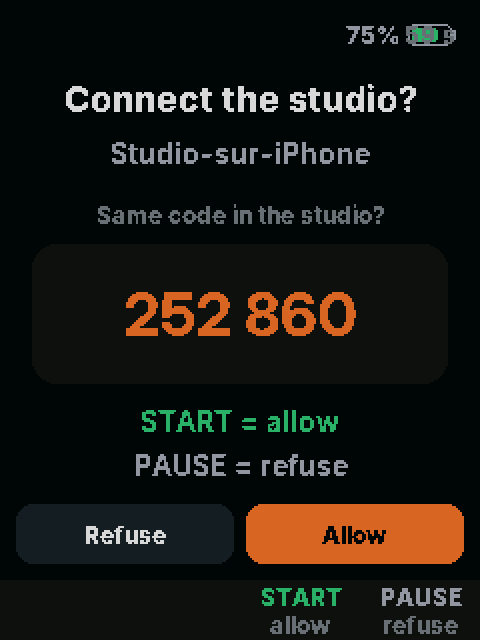
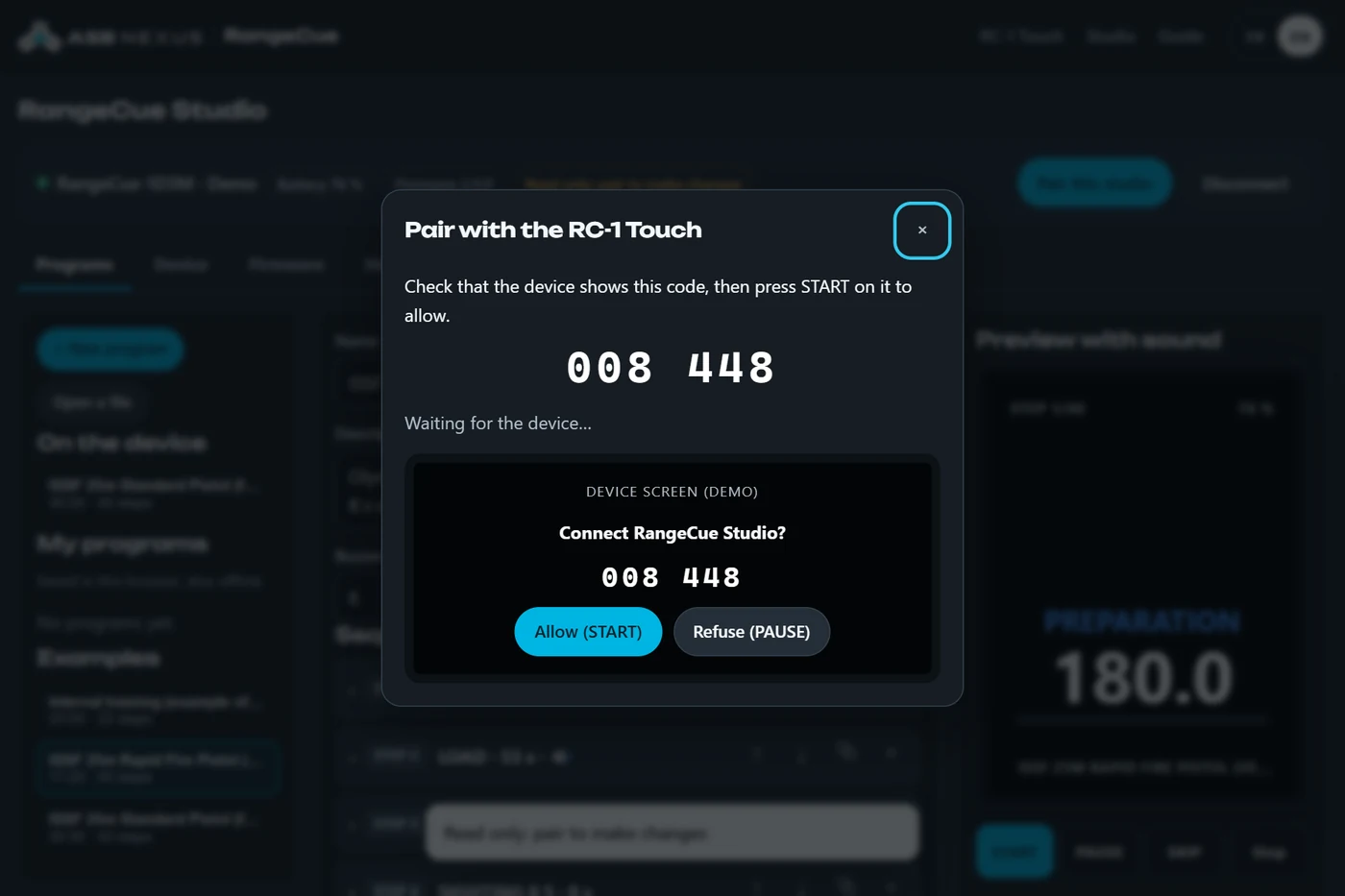
- In the studio, click Pair this studio. The studio shows a 6-digit code.
- The timer shows Connect the studio? with the same code. Check that the codes match.
- Press START (or tap Allow) on the timer. PAUSE (or Refuse) refuses. With no answer within 60 seconds, nothing is paired.
Next time, the same studio connects without a code. Pairing is refused while a program runs. Settings › Studio link › Forget paired studios removes every paired studio.
iPhone, iPad, Safari and Firefox: the timer’s own Wi-Fi
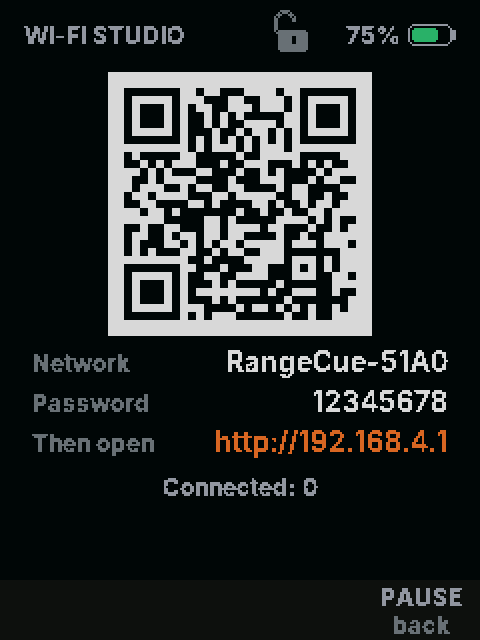
- On the timer: Settings › Studio link › Wireless › Wi-Fi, then Wi-Fi details + QR.
- On the phone: scan the QR code with the camera to join the network
RangeCue-XXXX, or join it in the Wi-Fi settings with the 8-digit password shown on the timer. - The studio page opens by itself. If it does not, open http://192.168.4.1 in the browser.
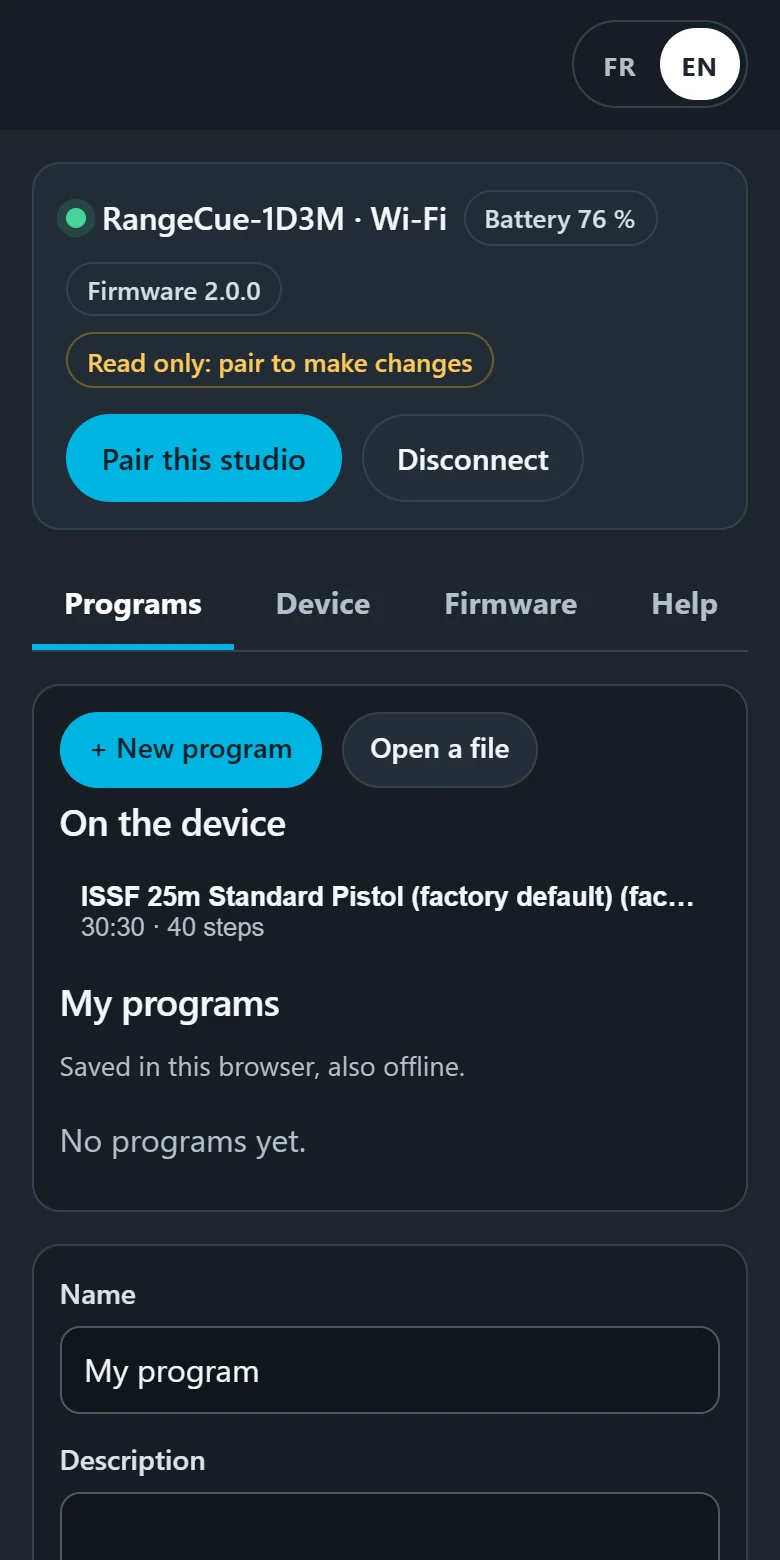
- Pair (code on the timer, START), then edit programs and settings.
- When you are done, leave the
RangeCue-XXXXnetwork: while connected to it, the phone has no internet. If iOS warns “No Internet Connection”, choose Use Without Internet.
- Everything stays between the phone and the timer; no internet is used.
- The online studio at rangecue.asbnexus.com cannot reach the timer’s Wi-Fi: on an iPhone, always use the page served by the timer. To bring a program made online, use Download file in the online studio, then Open a file on the timer’s page and Send to device.
- Install the full studio page once. Out of the box, the timer serves a small built-in page: pairing, settings and program files (download, upload, delete). To get the full studio on the phone, connect once from a computer or an Android phone by cable or Bluetooth and use studio › Firmware › Install the studio page on the device. The page stays on the timer.
- After 10 minutes without activity the Wi-Fi session closes; reload the page to connect again.
What you can do in the studio
- Programs
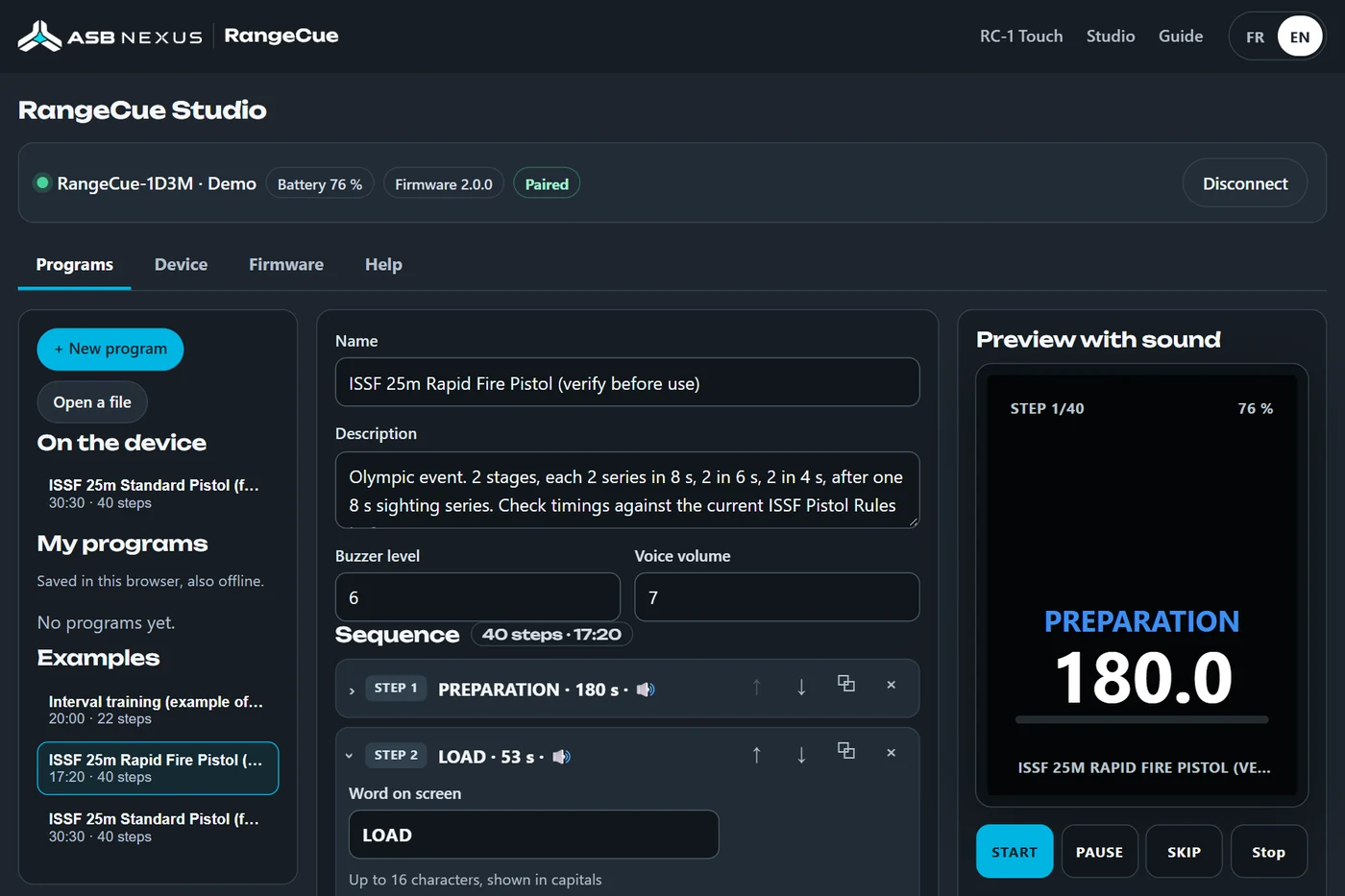
- On the device lists the programs on the timer (Read opens one). My programs are saved in this browser, also offline. Examples are ready-made programs. New program and Open a file start editing.
- Editor
- The same fields as on the timer: word on screen, step name, duration (0.1 to 5940 s), spoken command, when it is said, buzzer at start and end, countdown beeps, next step (automatic or wait for START), repeat blocks with their repeats and counter word. Steps can be moved, duplicated and removed.
- Preview with sound
- Plays the program with START, PAUSE, SKIP and Stop, with the buzzer patterns and the timer’s own voice clips, in the voice language you choose. The buzzer plays quieter than on the timer.
- Send to device, Save, Download file, Share
- Send to device writes the program to the timer (paired studio only). Share makes a link and a QR code; the program travels inside the link itself, nothing is stored on a server.
- Device
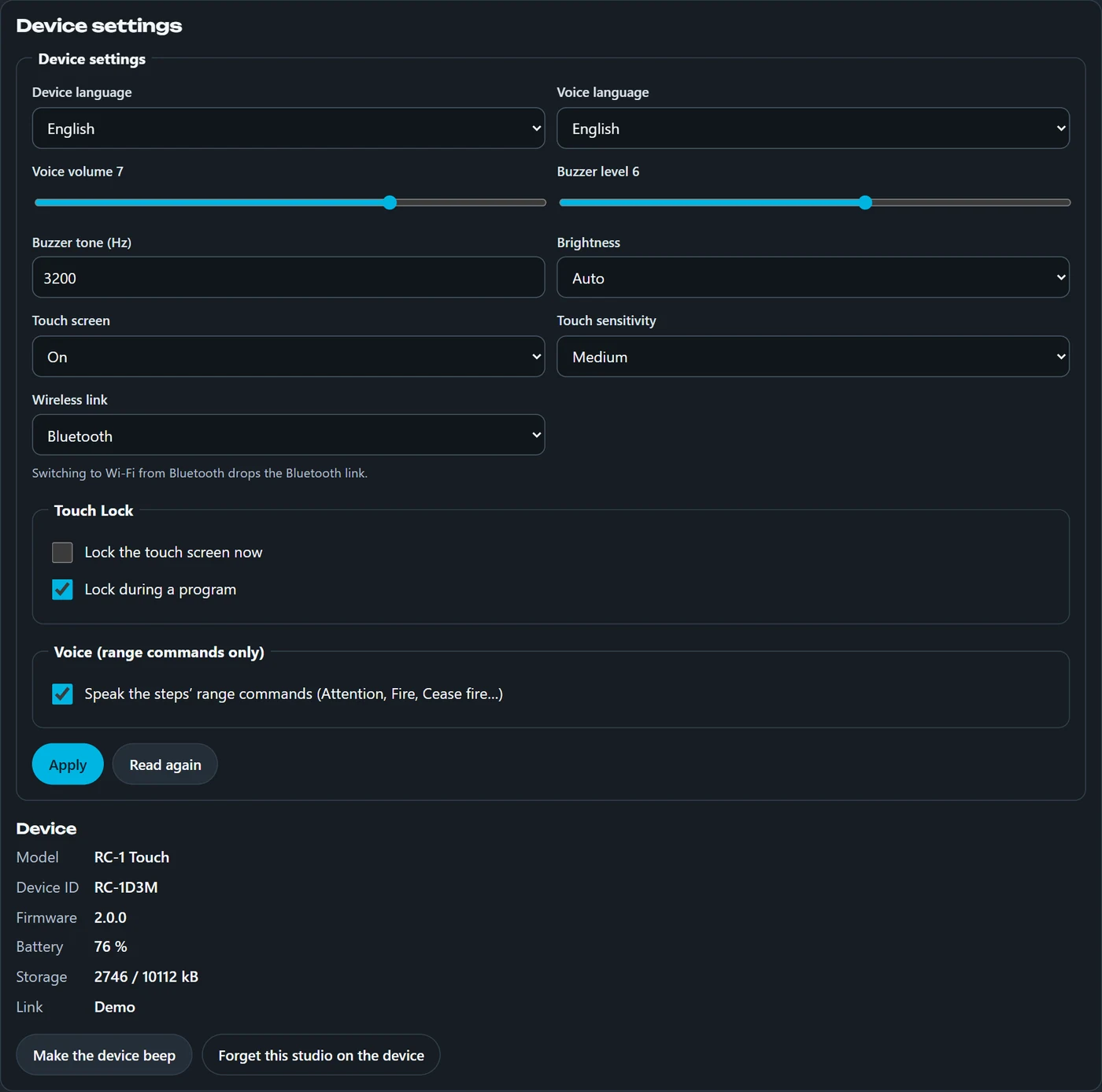
- The timer’s settings: languages, voice volume, buzzer level and tone, brightness, touch, Touch Lock, sensitivity, wireless link and range commands on/off. Apply sends them. Also: model, device ID, firmware, battery, storage, Make the device beep and Forget this studio on the device.
- Firmware
- Firmware updates and recovery (chapter “Firmware updates”).
- Help
- The browser table and the Wi-Fi steps.